

Teams | Collaboration | Customer Service | Project Management

How a Tree Trimming Company uses OneDesk to manage their operations

Although large companies generally gain stability in surviving growing pains, they face different challenges in managing their work across a large workforce. It is normal to see such companies divided into different departments, which then are made up of smaller teams. These smaller teams may each have their own lead or manager or, as is often the case, they may share leads or managers with other teams.
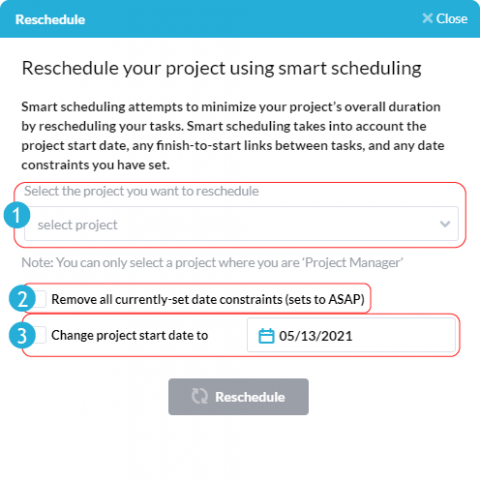
Smart Rescheduling in OneDesk

OneDesk makes optimizing your project schedule easy with ‘smart rescheduling’. In only a few clicks, this powerful tool can optimize the work schedule of your projects, allowing you to save time and reduce the overall duration of your projects. Smart rescheduling will take into account the project’s start date, any finish-to-start links between tasks, and any date constraints you have set, unless you specify otherwise.

How a Healthcare MSP uses OneDesk to streamline its workflow

As a managed service provider (MSP), providing a high quality of service is tantamount to the success of the business. The range of services provided by an MSP includes providing support, maintaining equipment, and improving the operations, all with an eye to anticipating future needs and optimizing cost. The relationship between the service provider and its customers is predicated on a contract wherein the service provider commits to providing a particular level of service for a given price point.

How a Creative & Design SaaS Company uses OneDesk to optimize their workflow

Having a multi-talented, cross-functional team is often seen as an ideal team composition, opening up many different opportunities for work and services that a company can offer. However, that doesn’t mean that there are no challenges presented by this situation. In fact, by providing various different services, there are often multiple workflows introduced to support each one. This can be tricky to manage, and sometimes this administrative headache can become more onerous than the work itself.

Email Settings: Appearance

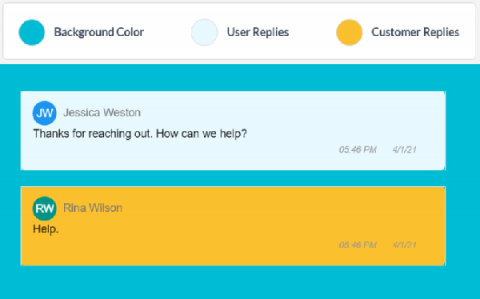
Under the Appearance tab in your OneDesk Email Settings, you are able to edit some visual aspects of your email messages. If you have completed the Getting Started Wizard in OneDesk, you would have already edited aspects of the header (the logo) and added a signature. The email header and signature you set will be what OneDesk uses to wrap all your emails in. We put these at the top (header) and bottom (signature) of every email from OneDesk.